09 October, 2016

Add Node to Oracle RAC 11gR2(11.2.0.3) on Oracle Linux 6.5 2 Node RAC Infrastructure

Here i am going to post the steps needed to add a node to the existing two node RAC 11.2.0.3 Infrastructure on Oracle Virtual BOX
Already this is two node RAC Infrastructure configured on OEL6.5 on Oracle Virtual BOX.
I Have used backup to create additional node rac3.
During the Installation of 11.2.0.3 RAC on Virtual BOX before the configuration of ASM disks I have taken backup of Virtual BOX VM.
Please see my previous post
In the above post i have backed up the VM to some Backup location. To backup i have exported the present Appliance.
Backup VM. Click File export Appliance. 

Now to Create a New RAC node, i have imported the appliance which was backed up earlier at the time installation of RAC.
Click on File->Import Appliance
If you dont have any backup. then need to configure a fresh vm and  installation OEL6.5 with all pre-reqs steps which were mentioned in my previous post11gRACINSTALL
01
Select the backup file .ova path which was taken earlier.
02
Change the name to rac3 and scroll down to select the location where you want to save the imported VM.
03
04
05
RAC3 vm is going to get created once we import the appliance
06
07
Add ASMDISKS click on storage.
07
Click on the icon show in below screenshot
08
Click on Add Hard Disk
09
And select “choose existing disk”
10
Go to the ASM disk 1 and select it and click ok
11
Repeat this step for the remaining ASMDISKs*
12
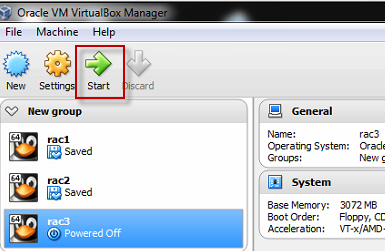
Start the RAC3 VM
13
15
hostname has to be changed. Change it to rac3.
16
17
Save and exit.
Now we need to configure virtual nics with correct IP’s for Private and Public
Follow the navigation as below
18
Change the IP address from 192.168.56.71 to 192.168.56.73 this is for PUBLIC
19
Now change for Private also
20
Add the entries in /etc/hosts file as below
21
Install oracleasmlib rpm and configure ASM
22
23
in the above screenshot i have mistakenly provided group as dba(which should be oinstall).
24
25
Also install the missing RPM’s
151617181920
also Configure SSH between all the 3 Nodes. I followed http://oracle-base.com/articles/linux/user-equivalence-configuration-on-linux.php
it has ssh setup for 2 Node rac

SQL to find the log file of active workflow mailer and workflow agent listener Container

select fl.meaning,fcp.process_status_code,
decode(fcq.concurrent_queue_name,’WFMLRSVC’,’maile r container’,’WFALSNRSVC’,’listener container’,fcq.concurrent_queue_name),
fcp.concurrent_process_id,os_process_id, fcp.logfile_name
from fnd_concurrent_queues fcq, fnd_concurrent_processes fcp , fnd_lookups fl
where fcq.concurrent_queue_id=fcp.concurrent_queue_id and fcp.process_status_code=’A’
and fl.lookup_type=’CP_PROCESS_STATUS_CODE’ and
fl.lookup_code=fcp.process_status_code
and concurrent_queue_name in(‘WFMLRSVC’,’WFALSNRSVC’)
order by fcp.logfile_name;

R12.2. Start and Stop Procedure

Individual Components:  Application(Middle Tier)
$INST_TOP/admin/scripts
when we want to stop all the services using adstpal.sh we use adstpal.sh apps/apps<pwd> but in R12.2 it will ask Weblogic Server Password
We need to provide Weblogic admin password
ComponentCommand
Node Manager$adnodemgrctl.sh start
Enter Weblogic Admin Password:
Weblogic Admin Server$adadminsrvctl.sh start
Enter Weblogic Admin Password:
Application Listener$adadlctl start
Oracle Process Manager$adopmnctl.sh start
Apache Services$adapchctl.sh start
Managed Server for OACORE Services$admanagedsrvctl.sh start oacore_server1
Enter Weblogic Admin Password:
Managed Server for FormsServices$admanagedsrvctl.sh start forms_server1
Enter Weblogic Admin Password:
Managed Server for Fusion MiddleWare  Services$admanagedsrvctl.sh start oafm_server1
Enter Weblogic Admin Password:
Managed Server for Forms web  Services$admanagedsrvctl.sh start forms-c4ws_server1
Enter Weblogic Admin Password:
Concurrent Manager Service$adcmctl.sh start apps/apps
Fullfillment Serer Services$jtffmctl.sh start
Stop
When we want to stop adstpal.sh apps/apps again it is going to ask weblogic password
ComponentCommand
Fullfillment Serer Services$jtffmctl.sh stop
Concurrent Manager Service$adcmctl.sh stop apps/apps
Managed Server for Forms web  Services$admanagedsrvctl.sh stop forms-c4ws_server1
Enter Weblogic Admin Password:
Managed Server for Fusion MiddleWare  Services$admanagedsrvctl.sh stop oafm_server1
Enter Weblogic Admin Password:
Managed Server for FormsServices$admanagedsrvctl.sh stop forms_server1
Enter Weblogic Admin Password:
Managed Server for OACORE Services$admanagedsrvctl.sh stop oacore_server1
Enter Weblogic Admin Password:
Apache Services$adapchctl.sh stop
Oracle Process Manager$adopmnctl.sh stop
Application Listener$adadlctl stop
Weblogic Admin Server$adadminsrvctl.sh stop
Enter Weblogic Admin Password:
Node Manager$adnodemgrctl.sh stop
Enter Weblogic Admin Password:
stop

Upgrade R12.2.0 to R12.2.2

Configuration Information for R12.2.0 Instance . Its a TWO node Instance with Database and Application running on two separate nodes
NOTE:
If it is a single node install make sure you have atleast 220GB mount point allocated for install and upgrade
Database Server Configuration:
CPU’s:2
RAM:16GB
SGA:12GB
Applications Server Configuration:
CPU’s:2
RAM:16GB
Download R12.2.2 Update Pack Patches from edelivery.oracle.com
when you extract these files you will get a folder 16207672, and 16207673 is online help patch for R12.2.2
patch
Before Upgrade:
Bala_1
Step1:
Reset FND_SQLNET_ACCESS to ALLOW_RESTRICTED
Rapid Install sets the FND_SQLNET_ACCESS profile option to ALLOW_ALL during an installation or upgrade. Peform the following steps to verify the setting of this profile option and reset as needed:
Log in to the application tier and source the environment.
Connect to the database as APPS schema owner.
Execute the following query to determine the current profile setting:
SQL>SELECT profile_option_value FROM fnd_profile_option_values WHERE (application_id,profile_option_id) IN (SELECT application_id,profile_option_id FROM fnd_profile_options WHERE profile_option_name='FND_SQLNET_ACCESS');
If the profile_option_value is already set to ALLOW_RESTRICTED, no further action is necessary:
If the profile_option_value is not set to ALLOW_RESTRICTED, execute the following SQL statement:
UPDATE fnd_profile_option_values SET profile_option_value='ALLOW_RESTRICTED' WHERE (application_id,profile_option_id) IN (SELECT application_id,profile_option_id FROM fnd_profile_options WHERE profile_option_name='FND_SQLNET_ACCESS');
Run AutoConfig on the database tier.
Step2:-
Apply mandatory fs_clone fix – Patch 17064510:R12.TXK.C
$ adop phase=apply patches=17064510 hotpatch=yes
$ adop phase=fs_clone
New Installations (Vision and PROD) Customers:
Apply mandatory Patch 17064510 (17064510:R12.TXK.C) in hotpatch mode on the Run File System.
$ adop phase=apply patches=17064510 hotpatch=yes
Step3:
Create Snapshot
After your installation or upgrade is complete, run the AD Administration Maintain Snapshot option.
Run AD Administration (adadmin).
From the Main Menu, choose Maintain Applications Files > Maintain Snapshot Information.
Select Option 2, Update Current View Snapshot. Then, from the Snapshot submenu, select Option 1, Update Complete APPL_TOP.
Step4:
Required Database and Application Tier Patches
Note: The online process is the preferred method to apply patches to the technology stack components. Refer to My Oracle Support Knowledge Document 1355068.1, Oracle E-Business Suite 12.2 Patching Technology Components Guide.
2.1 Database Patch Checker
If you are upgrading to Release 12.2 using an existing Oracle Database 11.2.0.3 ORACLE_HOME, you must check that you have all the required one-off patches by running the addbptchk.sh script before you run Rapid Install to create the upgrade file system.
The addbptchk.sh script helps you to determine if all the needed one-offs exist in the specified ORACLE_HOME.
To use the script:
Download and unzip the startCD.
Navigate to the startCD/Disk1/rapidwiz/bin directory.
Run the script addbptchk.sh.
Supply the values the script prompts for.
The script provides a list of one-offs that are either missing, or need to be rolled back.
Take the appropriate actions based on the results provided by the script.
An example of script execution is shown below.
$ pwd
/Stage/startCD/Disk1/rapidwiz/bin
$ ./addbptchk.sh Enter the full path of rapidwiz location: /Stage (the directory where startCD dir exists)
Enter $ORACLE_HOME value : /u01/oracle/PROD/11.2.0
Setting ORACLE_HOME to : /u01/oracle/PROD/11.2.0
Please confirm this is the correct value [y/n] :y
Enter database SID : PROD
Setting database SID to: PROD
Please confirm this is the correct SID [y/n] :y
Setting database context to: PROD_dbserv
Please confirm this is the correct context [y/n] :y
Looking for database context file /u01/oracle/PROD/11.2.0/appsutil/PROD_dbserv.xml
Please confirm this is the correct file [y/n] :y
Found /u01/oracle/PROD/11.2.0/appsutil/PROD_dbserv.xml...
The DB version is assumed to be 11.2.0.3.
Pre-req Patch Testing Start Phase : Thu Oct 12 11:28:59 PDT 2013
runProcess_1
Rapidwiz location from DB context file is /Stage/startCD46/Disk1/rapidwiz
Rapidwiz location in db context file differs from the value provided.
Using the rapidwiz location /Stage/startCD/Disk1/rapidwiz.
Copying templates to temp area
Executing Perl command:
perl -pi -e 's/txkTopology_R1220_DB11gR2_11202_Patches.xml/txkTopology_R1220_DB11gR2_11203.xml/g' /u01/oracle/PROD/11.2.0/temp/PROD_dbserv/xmldocs/instDB.xml
Copying one-off patches to temp area
Copying /u01/oracle/PROD/11.2.0/temp/PROD_dbserv/DBInstallHome/fnd/html/txkTopology_R1220_DB11gR2.xml to /u01/oracle/PROD/11.2.0/temp/PROD_dbserv/cfgHome
Executing command: /Stage/startCD/Disk1/rapidwiz/jre/Linux_x64/1.6.0/bin/java -cp /u01/oracle/PROD/11.2.0/temp/PROD_dbserv/DBInstallHome/fnd/../j11067593_fnd.zip:/u01/oracle/PROD/11.2.0/temp/PROD_dbserv/DBInstallHome/fnd/java/3rdparty/stdalone/xmlparserv2.zip -Doracle.apps.fnd.txk.env_home=/u01/oracle/PROD/11.2.0/temp/PROD_dbserv -Doracle.apps.fnd.txk.runtime.config=/u01/oracle/PROD/11.2.0/temp/PROD_dbserv/tmp/patch_runtime.xml -Doracle.apps.fnd.txk.AutobuildXML.generate=true -Doracle.apps.fnd.txk.AutobuildXML.file=/u01/oracle/PROD/11.2.0/temp/PROD_dbserv/tmp/patch_build.xml oracle.apps.fnd.txk.config.InstallService
Log Dir = /u01/oracle/PROD/11.2.0/temp/PROD_dbserv/logs [ Format=oracle.apps.fnd.txk.install%g.log ]
Using TXK patch template file :/u01/oracle/PROD/11.2.0/temp/PROD_dbserv/DBInstallHome/fnd/html/txkTopology_R1220_DB11gR2_11203_Patches.xml
Opatch is at the required version
All the required one-offs are not present in Oracle Database Home
Apply the one-offs from the list below that are valid for your platform :
--You will get a list of pre-patches patches that are to be applied----
Resolve the patch conflicts and run the script again to confirm.
FINISHED Pre-req Patch Testing : Thu Oct 14 10:29:24 PDT 2013
Apply the following patches:
17468141 - PL/SQL COMPILATION THROWS ERROR ORA-4063
16924879 - CLEAN UP OBSOLETE ORACLE/QSMA SYNONYMS FROM DB 11.2
17047617 - MERGE REQUEST ON TOP OF 11.2.0.3.0 FOR BUGS 15967134 12657924
17184721 - CLEAN UP OBSOLETE ORACLE/QSMA SYNONYMS POST INSTALL SCRIPT
Step5:
a. Apply Consolidated Seed Table Upgrade Patch 16605855:12.2.0 (required for both VISION and PROD)
Note: This patch is mandatory for both Vision and PROD New Installation Customers. The instructions to apply Patch 16605855 (16605855:12.2.0) on the Run File System are as follows:
b. Stop all Application tier services on the Run File System.
$ sh $ADMIN_SCRIPTS_HOME/adstpall.sh
c. Start up only the Weblogic AdminServer service on the Run File System.
UNIX
$ sh $ADMIN_SCRIPTS_HOME/adadminsrvctl.sh start
d. Apply seed table upgrade Patch 16605855:12.2.0 on Run File system using adop hotpatch mode.
$ adop phase=apply patches=16605855 hotpatch=yes
d. Start up all Application tier services.
$ sh $ADMIN_SCRIPTS_HOME/adstrtal.sh
Step6:
a. Apply the 12.2.2 AD and TXK Release Update Packs
If you are upgrading from Release 11i, 12.0.x, or 12.1.x to Release 12.2.2 and have already applied the latest AD and TXK Release Update Packs (the same or higher release version than mentioned in this readme), you can skip this section. The minimum required release versions for AD and TXK upgrading to Release 12.2.2 are R12.AD.C.Delta.2 and R12.TXK.C.Delta.2. To apply the Release 12.2.2 AD and TXK Release Update Packs, see Document 1560906.1, Applying the Release 12.2.2 AD and TXK Release Update Packs.
b. Apply the 12.2.2 Suite-Wide Release Update Pack
i) Download and unzip Oracle Applications DBA 12.2.2 Product Release Update Pack (R12.AD.C.Delta.2) , Patch 15955263.
Usage:
a. Create $ORACLE_HOME/appsutil/admin on the database server.
b. Copy the higher version of adgrants.sql (UNIX) to $ORACLE_HOME/appsutil/admin.
c. Set the environment to point to ORACLE_HOME on the database server.
d. Use SQL*Plus to run the script:
UNIX:
$ sqlplus /nolog
SQL> @$ORACLE_HOME/appsutil/admin/adgrants.sql APPLSYS
cd 15955263
$ adop phase=prepare
$ adop phase=apply
ii) Download and apply phase for R12.TXK.C.DELTA.2 Patch 15946788.
cd 15946788
$ adop phase=apply
Note: R12.AD.C.DELTA.2 and R12.TXK.C.DELTA.2 must be applied in the same online patching cycle, without merging.
iii) Complete the online patching cycle by running the following commands in the order shown.
$ adop phase=finalize
— Downtime Required Here
$ adop phase=cutover
$ adop phase=cleanup
Having applied the Release 12.2.2 AD and TXK Release Update Packs, you can now proceed to apply the 12.2.2 Suite-Wide Release Update Pack.
1. Start an online patching cycle.
$ adop phase=prepare2.

Apply Oracle E-Business Suite Release 12.2.2 Patch 16207672 and Oracle E-Business Suite Release 12.2.2 Online Help Patch 16207673.
$ adop phase=apply patches=16207672,16207673

or cd 16207672
 adop phase=apply

and 
cd 16207673
adop phase=apply

3. Instantiate the Oracle HTTP Server configuration files ssl.conf and mod_wl_ohs.conf.
a. Source the patch edition environment file:
$ . $PATCH_BASE/EBSapps/appl/APPS$CONTEXT_NAME.env
$ $ADJVAPRG oracle.apps.ad.autoconfig.InstantiateFile \
-e $CONTEXT_FILE \
-d $FND_TOP/admin/driver/ohstmpl.drv \
-tmpl $FND_TOP/admin/template/ssl_conf_FMW.tmp
$ $ADJVAPRG oracle.apps.ad.autoconfig.InstantiateFile \
-e $CONTEXT_FILE \
-d $FND_TOP/admin/driver/ohstmpl.drv \
-tmpl $FND_TOP/admin/template/mod_wl_ohs_conf_FMW.tmp
4. Complete the online patching cycle by running the following commands in the order shown.
a. Source the run edition environment file:
. $RUN_BASE/EBSapps/appl/APPS$CONTEXT_NAME.env
b.$ adop phase=finalize
c.$ adop phase=cutover
d.$ adop phase=cleanup
5. Post-Update Steps

After Upgrade

Bala_2
-------BEFORE YOU EXECUTE BELOW STEP MAKE SURE YOU HAVE atleast 75gb ADDITIONAL FREE SPACE-------------------
 In my case I was already having 100Gb mount point space, After Installation of R12.2.0 the mount is 54GB occupied, 
But after Upgrade this mount got increased to 60GB and when I was executing the below step it error ed out saying 
there is lack of space. and Suggesting me to add another 35GB to the existing mount point. So have atleast 150GB 
mount point space for installation and upgrade of R12.2.2 application.
---------------------------------------------------------------------------------------------------------------
Synchronize file systems:
Synchronize the file systems using the command shown below. This action will copy the new run edition code and configuration to the —-other file system, to help the next online patching cycle complete faster.
$ adop phase=fs_clone

This finishes the Upgrade of R12.2.0 to R12.2.2

Ref:
Oracle E-Business Suite Release Notes, Release 12.2 (Doc ID 1320300.1)
Oracle E-Business Suite Applications DBA (AD) Release Notes for Release 12.2 (Doc ID 1376487.1)

My First Issue on R12.2- Online Patching-ORA-20008: No Concurrent Manager is defined that can run concurrent program

I was upgrading R12.2.0 to R12.2.2, as part of the upgrade i was applying 12.2.2 AD and TXK patches.
When i was running adop phase=prepare in patching cycle. I faced below error:
ERROR at line 1:

ORA-20008: No Concurrent Manager is defined that can run concurrent program

ADZDPATCH

ORA-6512: at "APPS.AD_ZD_ADOP", line 240

Solution:
Set the Run filesystem / environment and run command:
FNDLOAD apps/apps 0 Y UPLOAD $FND_TOP/patch/115/import/afcpprog.lct $AD_TOP/patch/115/import/US/adzdpatch.ldt - CUSTOM_MODE=FORCE

Ref: Metalink Note:
ORA-20008 When Running "adop phase=prepare" (Doc ID 1587419.1)

Overview of R12.2 Cloning

For Full Step-By-Step Cloning of R12.2. Here is the link
Note: This is just an Overview of R12.2 Cloning
In R12.2 Oracle RapidClone uses native Fusion Middleware tools to clone Weblogic Server and Oracle HTTP Server homes.
No Longer we need to copy the FMW Home Files, FMW is automatically packaged into clone directoy during adpreclone execution.
In R12.2 Database Cloning remains the same.
when we run adpreclone.pl appsTier on the application Tier it creates Stage under $COMM_TOP/clone has WLS will be automatically packaged in this directory
Prepare the Source System Application Tier for cloning Log on to the “Run Edition File System” in the Source System as the APPLMGR
user, and run the following commands on each Node that contains an APPL_TOP:
$ cd <INST_TOP>/admin/scripts
$ perl adpreclone.pl appsTier
You can use the following command to confirm that the environment variable FILE_EDITION points to the Run Edition File System:
$ echo $FILE_EDITION
It should return the value:
run
As of Release 12.2, the adpreclone.pl process on the Application Tier creates a complete compressed archive of the Oracle Fusion Middleware and its components as follows:
• A compressed archive of the Oracle WebLogic Server home, Oracle WebTier Utilities home, Oracle Common Utilities home and the Oracle
E-Business Suite home:
<COMMON_TOP>/clone/FMW/FMW_Home.jar
• A compressed archive of the Oracle E-Business Suite Weblogic domain:
<COMMON_TOP>/clone/FMW/WLS/EBSdomain.jar
• The Oracle E-Business Suite Weblogic domain’s configuration template:
<COMMON_TOP>/clone/FMW/WLS/plan/moveplan.xml
• A compressed archive of the Oracle Web Tier/Oracle HTTP Server configuration instance:<COMMON_TOP>/clone/FMW/OHS/ohsarchive.jar
• The Oracle HTTP Server configuration instance’s configuration template:
<COMMON_TOP>/clone/FMW/OHS/moveplan.xml
Copy the Application Tier file system from the Source “Run Edition File System” to the Target “Run Edition File System”
Log on to “Run Edition File System” in the Source System Application Tier nodes as the APPLMGR user.
Copy the following Application Tier directories from the Source Node to the Target “Run Edition File System” Application Tier Node:
• <APPL_TOP>
• <COMMON_TOP>
• <OracleAS Tools 10.1.2 ORACLE_HOME>
The same Operating System user must own both the Run Edition and Patch Edition File Systems.
Warning: In Release 12.2, you can set the base directory to any desired location. However, the subdirectory structure cannot be changed because of dependencies on both the WLS domain and the dual file system required for online patching. Also, the base directory must be the same across all nodes in multi-node configurations.
Dual File System Directory Structure In Release 12.2, the following directory structure exists to allocate the Run Edition and Patch Edition File Systems:
Note: Please note that <s_base> and <sid> are user-defined values.
• <s_base>/<sid>/fs1 (for example, /u01/122/prod/fs1)
• <s_base>/<sid>/fs2 (for example, /u01/122/prod/fs2)
Two environment variables, $RUN_BASE and $PATCH_BASE, store these locations. The function (RUN or PATCH) of these two file systems is not static, and their values switch every time when a cutover phase is complete. As Clone would create a replica of the Source Node, if the Source “Run Edition File System” is the first file system (fs1), the Target “Run Edition File System” would also be the first file system (fs1). Similarly, if the Source “Run Edition File System” is the second file system (fs2), then the Target “Run Edition File System” would also be the second file system (fs2). Therefore, when you perform a cloning task, you always clone and copy the Source “Run Edition File System” to create the Target “Run Edition File System”, but the directory location of the “Run Edition File System” can be pointing either to <s_base>/<sid>/fs1 or <s_base>/<sid>/fs2 based on the Source “Run Edition File System” base directory.
When copying the files, use the values of $RUN_BASE and $PATCH_BASE variables to determine if the “Run Edition File System” should be copied to fs1 or fs2. For example,
• The Source “Run Edition File System” has the following values:
• $RUN_BASE=/u01/122/prod/fs2
• $PATCH_BASE =/u01/122/prod/fs1
• The Target <s_base> directory will be /d05/test. In this situation, copy the Source “Run Edition File System” into the Target
/d05/test/fs2 directory to initially act as “Run Edition File System” and into the Target /d05/test/fs1 to act as “Patch Edition File System”.
Configure the Target System Application Tier server nodes
1. Log on to the “Run Edition File System” in the Target System as the APPLMGR user and enter the following commands:
$ cd <COMMON_TOP>/clone/bin
$ perl adcfgclone.pl appsTier
At the prompt, “Target System Base Directory”, enter the location of the base directory. For example: /u02/r122.
2. Run adpreclone.pl on the “Run Edition File System” in the Target System.
Copy Oracle E-Business Suite application directories from the “Run Edition File System” to the “Patch Edition File System” in the Target System.
Note: Make sure you pay attention to symbolic links under <OracleAS Tools 10.1.2 ORACLE_HOME> and <COMMON_TOP> directories when copying files.
4. Log on to the “Patch Edition File System” in the Target System as the APPLMGR user and enter the following commands:
$ cd <COMMON_TOP>/clone/bin
$ perl adcfgclone.pl appsTier
The “Patch Edition File System” must be aware of the location of the “Run Edition File System” that will be configured in the next step. At the prompt, “Location of Run System Context File”, enter the absolute path to the Context File for the “Run Edition File System” that was created in the previous step. For example:
/u02/r122/fs1/inst/apps/PROD_atgserver/appl/admin/PROD_atgserver.xml.
What Happens when we run adcfgclone.pl appsTier in R12.2
On the Target Node(RUN Edition FS)
RUN adcfgclone.pl appsTier on RUN EDITION of FS(as we have two file system in R12.2) Once it starts running
It creates context file based on the inputs that we provide,
It Unpackage OHS and WLS then
register/relinks OHs
Configure OH
Configure APPL_TOP
Creates INST_TOP
Starts The Processes.
On the Target Node (The Patch Edition FS)
RUN adcfgclone.pl appsTier on PATCH EDITION of FS
It creates context file based on the inputs that we provide,
It Unpackage OHS and WLS then
Register/relinks OHs
Configure OH
Configure APPL_TOP
Creates INST_TOP

List of Product Functionality’s Disabled during Online Patching Cycle in R12.2

Following Product Functionality will be Disabled during Online Patching Cycle:
During an online patching cycle, the following product restrictions will apply. Before we start patching, we should therefore ensure there will be no requirement for any these actions or features until the cycle is complete.
Payroll
• Users will not be able to define Fast Formulas or use the Fast Formula Assistant.
• Users will not be able to perform dynamic trigger maintenance.
• Users will not be able to create, update, or delete US Cities.
• Data Pump meta-mapper generator will be disabled.
• The Japanese Balance Dimensions concurrent program will be deferred to after the cutover phase is complete.
• Pension Calculation Setup cannot be used.
• US localization earnings and deduction setup cannot be used.
• Tax Withholding Rules Setup cannot be used.
• Wage Attachment Earnings Rules Setup cannot be used.
• Garnishment Rules Setup cannot be used.
• Quick Paint Reports cannot be used.
• Quantum Program Update Installer execution is unavailable.
Order Management:
• Creation of a new Defaulting Condition in the Attribute Defaulting Rules form is disabled, unless the same seeded condition already exists for a given attribute.
Warehouse Management:
• WMS Rule creation is restricted.
Inventory:
• Concurrent program “Generate Stock Locator Flexfield Definition for Mobile Transactions” will be disabled.
Subledger Accounting:
• Users will not be able to Validate the Application Accounting definitions.
Accounts Receivable:
• Users will not be able to create new Transaction Sources.
Oracle Demand Planning:
• Demand plans will not be available for users.

OEM Agent Installation

./agentDeploy.sh AGENT_BASE_DIR=/u001/oracle/product/agent13c OMS_HOST=oem-dev.xxx.com EM_UPLOAD_PORT=1159 AGENT_REGISTRATION_PASSWORD=*****...